
Designing Effective Settings and Preferences Menus in Mobile Apps
Creating an intuitive, user-friendly settings menu is crucial for improving the user experience in mobile applications. A thoughtfully crafted settings interface allows users to tailor their app experience effortlessly and promotes ongoing satisfaction. To see real-world examples of modern account settings UI design, you can explore collections of leading mobile screens for further inspiration.
When a settings menu is easy to understand and efficient to use, app retention rates and user engagement rise. By addressing organization, language, accessibility, and feedback loops, developers enable users to manage their preferences confidently and avoid frustration.
The mounting complexity of many mobile apps underscores the importance of clear and effective settings design. A well-executed settings menu helps users stay in control, feel comfortable returning to the app, and take advantage of the features that matter most to them.
Understanding how to approach the structure and language of settings within your apps isn’t just a design preference; it is central to accessibility and user trust. Following best practices for usability and testing ensures that even users with special needs can enjoy a seamless configuration experience. For comprehensive guidance around usability standards, the Nielsen Norman Group’s insights on customization and personalization are an essential resource.
Organize Settings Logically
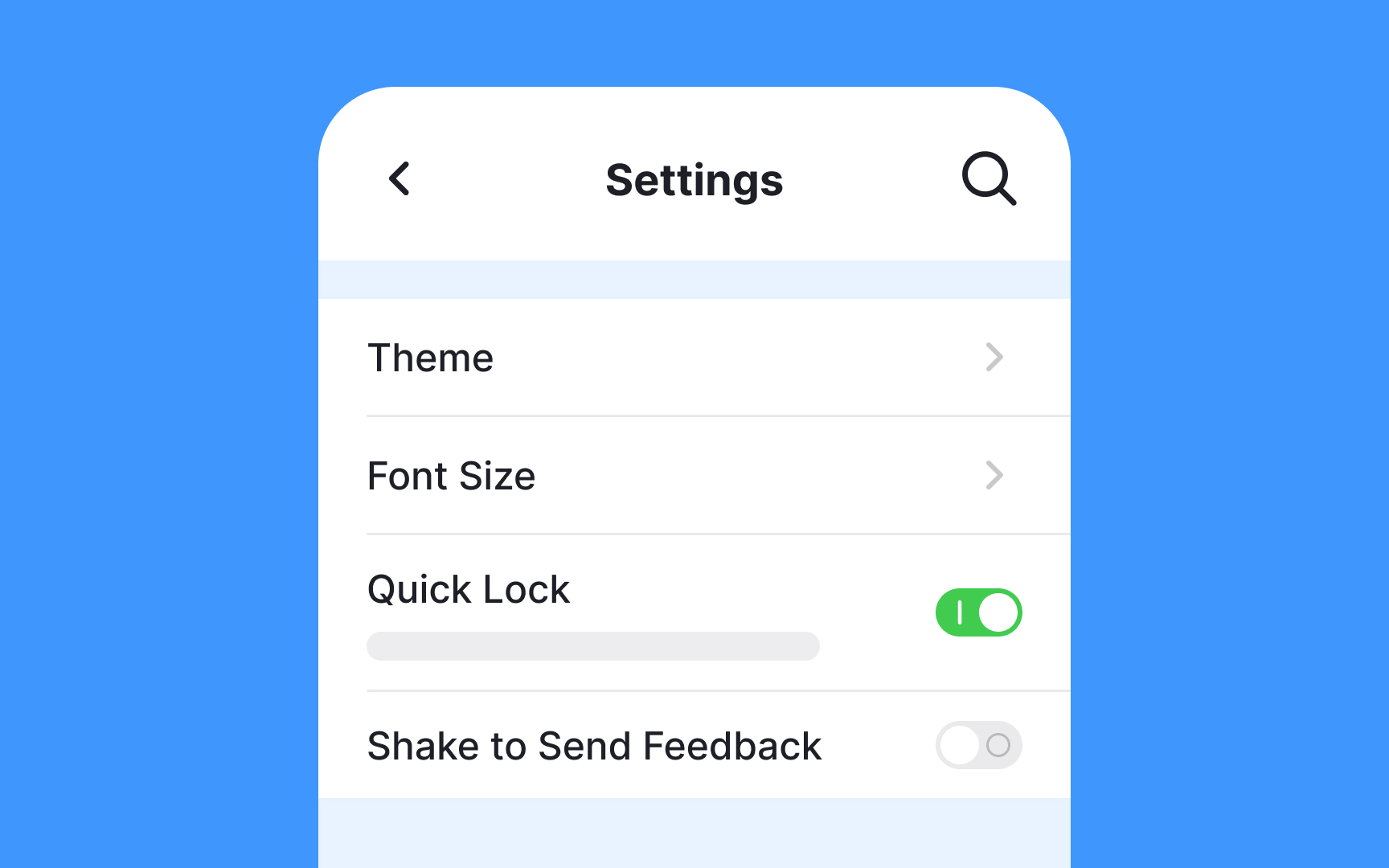
Presenting settings in clearly defined sections is fundamental to usability. Grouping related options, such as notifications, privacy, and display, in dedicated categories enables users to find what they need with minimal searching. For instance, locating all notification controls under a single “Notifications” heading streamlines adjustments while avoiding overwhelming the user with scattered options.
Use Familiar Patterns
Employ navigation patterns users already know. Collapsible groups, toggles, and section headers help create a predictable experience and lower cognitive load. Consistent interfaces foster trust and ensure that users do not hesitate when modifying important aspects of their app experience.
Use Clear and Concise Language
Simplicity should guide all wording in your settings interface. Swap technical jargon for everyday expressions that your audience recognizes. Spelling out functionality in plain language, like “Turn on notifications” instead of “Enable Push Notifications,” minimizes reversal errors and confusion and helps all users, regardless of expertise, act with confidence.
Provide Helpful Descriptions
Beside each toggle or drop-down, include short but informative descriptions. These clarifications go a long way toward improving comprehension, especially when settings are complex or affect app behavior in unexpected ways.
read more : https://billionfire.com
Implement Appropriate Default Settings
Sensible defaults reduce friction for most users and help new users trust that the app will behave as expected right from the start. Common choices, such as enabling automatic updates or muting notification sounds, appeal to a broad audience and reduce the risk of accidental misconfiguration. If in doubt, opt for default settings that err on the side of caution, practicality, and performance.
Ensure Accessibility and Consistency
Make it a priority to ensure your settings menu is accessible to everyone, including those who rely on assistive technologies. Use large touch targets, properly labeled controls, and strong color contrast. S readers should be able to modify every option and description clearly for vision-impaired users. Following established usability guidelines, such as those from the W3C’s Web Content Accessibility Guidelines, helps ensure inclusive access.
Uniform Controls
Once users learn one control type, such as a toggle or radio button, make sure the same type is used consistently for similar choices. A uniform interface reinforces mental models and supports smooth navigation, both on first use and for returning users who might reconfigure preferences.
Provide Contextual Settings
Streamline the experience even further by placing relevant settings where they matter most. Positioning a “Closed Captioning” toggle directly within a video player enables quick adjustments without requiring the user to leave the content. Contextual placement of options fosters efficiency and keeps users immersed in your app’s core features.
Offer Search Functionality
Particularly in feature-rich apps, a built-in search function saves time. Users can enter keywords and jump straight to the option they need, which is vital when menus have deep hierarchies or numerous options. Integrating search improves the overall discoverability of less commonly used settings.
Test and Iterate
The most effective way to ensure your settings interface truly serves your users is through regular usability testing. Gather feedback via direct observation and surveys to identify friction points. Use real-world insights to prioritize updates, streamline flows, and keep the menu relevant as the app evolves, and your user base grows. Practicing continuous iteration is key to long-term usability.
Conclusion
Exceptional settings menus start with logical organization and clear language, are accessible for all, and improve based on direct user feedback. These best practices create an interface that empowers users to customize their experience, fostering long-term satisfaction and engagement with the app.